Showing posts with label how. Show all posts
Showing posts with label how. Show all posts
Friday, February 27, 2015
How to See How Many Email Followers You Have and Who They Are Giveaway Announcement!
So the past two weeks I got mixed up and ended up missing two technology Tuesday posts in a row. Im so sorry! Im back today though... with a new Tech Tuesday post and a giveaway announcement!
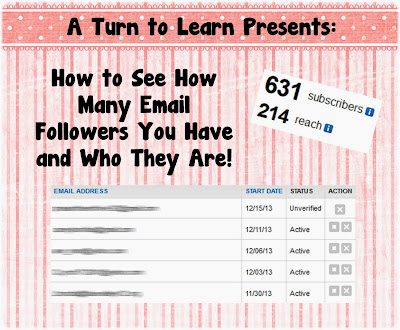
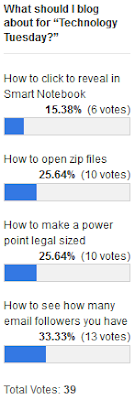
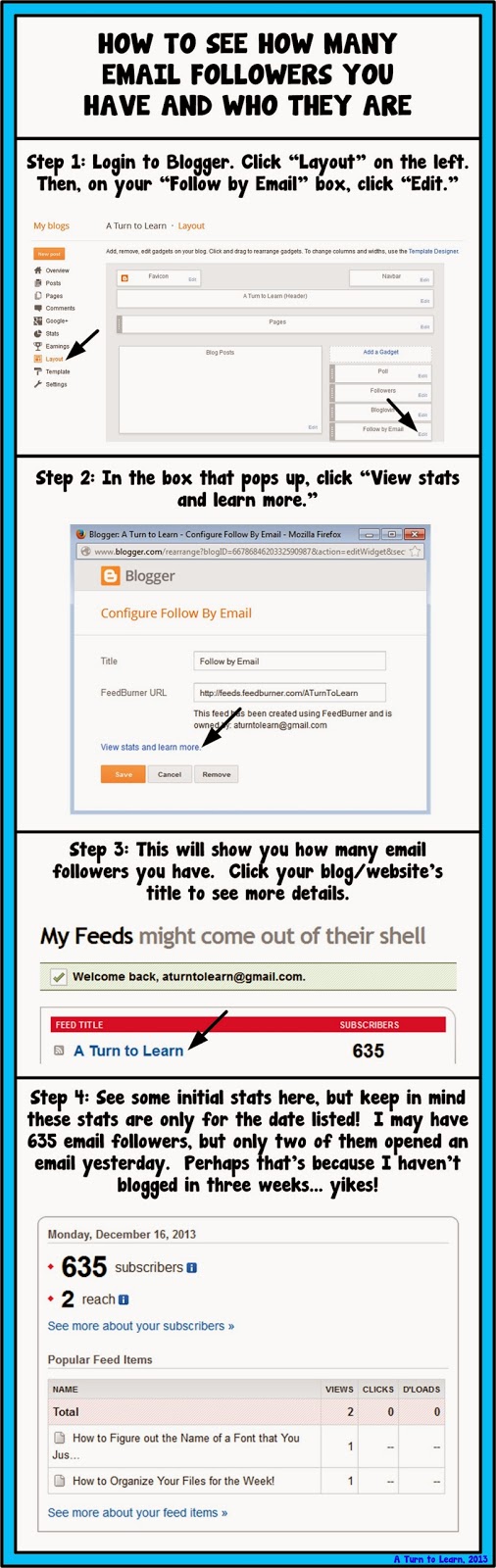
First things first, here is the tutorial. The winner on the poll this week was another blogger tutorial... how to see how many email followers you have and see who they are!
Here is the poll:
Now onto the tutorial!


For next weeks poll, Ill be adding the option to change the colors, features or special effects of a shape, picture, or text box in PowerPoint... even if those shapes/pictures are on different slides!
Now... for the giveaway announcement!!! For all of my lovely followers, check back in tomorrow to see some new products and a chance to win them all!
Read more »
First things first, here is the tutorial. The winner on the poll this week was another blogger tutorial... how to see how many email followers you have and see who they are!
Here is the poll:
Now onto the tutorial!
You can download this tutorial as a PDF by clicking this picture!
Note: This tutorial is hosted on Google Drive. To save it from there, just open the file and click File > Download to save onto your computer!
For next weeks poll, Ill be adding the option to change the colors, features or special effects of a shape, picture, or text box in PowerPoint... even if those shapes/pictures are on different slides!
Now... for the giveaway announcement!!! For all of my lovely followers, check back in tomorrow to see some new products and a chance to win them all!

Friday, February 13, 2015
How to Report Duplicate Content to Google DMCA

Blogging is a good way of sharing your best ideas and thinking with others, for creating a free blog there are lot of web 2.0 websites where people can create a free blog and start sharing their ideas with the people living all around the world!, tons of blogs are created by tons of people and they’re not only helps others through their blogs but they earn through their blogs, people can make a research on internet to get ideas and completes their posts by giving it a new look which is not a bad thing but there are some people who have very bad habit, i.e they stoles contents from other blogs.
Also Read: How to Find the Websites or Blogs that are Copying your Content?
Also Read: Pros and Cons of Interviewing Bloggers on your Blog
That’s how? They just copy some posts from other blogs, paste and re-publish it on their own blogs, the blogs from which they copy contents lose their traffic from search engines, I recommend all bloggers to pay full attention to keep prevent your blog contents from text excerpted Because it will highly affect your blog traffic as it happens with my blog.
Recently, I noticed that my blog search traffic is decreasing day by day and just after two weeks, there was not only a single person came from a search. So I start searching why my blog traffic is so down quickly? So I found many of my blog posts which was copied from my blog, I was so angry because of my hard work to write every post and how they easily copied and pasted the content. I contacted so many authors but didn’t get any reply, so finally I started filing complaints to google DMCA and I got all of the posts deleted.
So if you’ve this problem too then don’t worry you can file a complaint to google DMCA and I am sure google will remove duplicate posts from other blogs. If you don’t know how I can file a complaint to google DMCA then here in this post you’ll learn how you can? All you need to do is to read this post step by step.
How to file a complaint to Google DMCA for duplicate content:
As we’re going to report for a copied post from blog by another blogger so follow the below steps and do it as I’m telling.
How to file a complaint to Google DMCA for duplicate content:
As we’re going to report for a copied post from blog by another blogger so follow the below steps and do it as I’m telling.
1. First of all go to this google legal help link: https://support.google.com/legal/contact/lr_dmca?product=blogger
2. Here in the first section it will collect contact information from you, including your full legal name, company name, email address and country of residency, what you’ve to is to enter your name and company name, so type your name in the first box, in company name box type your blog name or leave it blank.
3. Now you’ll have to enter full legal name of the copyrighted holder, you can write down your own full name in the box provided and then enter your email address trough which you’ll receive a confirmation message when they confirm that you’re the original owner of the copied material.
4. Next it will ask you to select your country of residency from the drop-down menu, so select your country and look forward.
5. Now the next section is need to be done very carefully, because in this section you’ll have to prove that you’re the original holder of the copyrighted materials, so in first box under the “Where can we see an authorized example of the work?” you’ve to enter the URL of your own blog post (s) which had been copied, if you’re going to report more than one post then paste one by one in that box enter one link per line.
And then in the next box you just write like this: My published post (comma)(“Title”)(comma) is infringed by…. (comma) ‘First three lines’ For example My Published post, “Post Title goes here”, is infringed by the text excerpted on the site, beginning with the text ‘First two or three lines goes here’. Here what if you provided more than one link in above box, you’ve to again type these with the information about the second post that must to be start in another line.
And then in the next box you just write like this: My published post (comma)(“Title”)(comma) is infringed by…. (comma) ‘First three lines’ For example My Published post, “Post Title goes here”, is infringed by the text excerpted on the site, beginning with the text ‘First two or three lines goes here’. Here what if you provided more than one link in above box, you’ve to again type these with the information about the second post that must to be start in another line.

6. Now in the next step under the “Allegedly Infringing Material” you’ve to paste the link of the post(s) copied from your blog. You can paste more than one link by clicking on additional link.
Also Read: The Top 10 Websites to create free Logo for your Blog
Also Read: Best Way to Easily Find and Remove Broken Links from your Website or Blog
7. The next step is to confirm that you’re the original owner of the materials, what here to do? Is to make a tick mark on the boxes which means that you agree with their statement,
8. One further step is the signature, You’ve to select the current date and time from the calendar and once again type your full name as a signature.

9. Now all the steps was required is done, you’ve to check all the sections once again whether if there is any mistakes so you’ll correct that if you noticed any mistake and finally click on submit button. After you click on submit button, a message appear that say thanks to you for using DMCA, now wait for a week to get your copied content removed from other place.
So friends! Above we discussed the method of filing a complaint to google DMCA in order to remove copyright contents from the blogs who copied your contents from your blog, I tried my best to make it understandable, and hope that you understand that and this tutorial will help you when you’re going to file a complaint to google DMCA.
Author Bio:
This post was contributed by Basheer Ahmad, who loves to share useful tools & tutorials regarding internet, SEO, blogging etc He recommends you to read his post free online video converters to convert videos online. Connect with him on Google+ or Facebook or Twitter.
S5DXJESTECMM
S5DXJESTECMM
Thursday, February 12, 2015
How to Find the Websites or Blogs that are Copying your Content

The websites or blogs that copy your content are actually committing Black-Hat SEO, which is something that Google punishes sites for. The trouble is that Google does not know who the duplicator is, and so will often punish both sites for duplicate content. This means that if another person copies your content, then they are also dragging your website down with them too. Added to this, is the insult that you have invested time (or money) into your web content, and now somebody else has come along and is stealing it.
Also Read: Tips on How to Have Better SEO Results with Link Building
CopyScape is a very good plagiarism checker
It is good because it has a reasonable mix of economy and quality. The truth is that there are some better plagiarism checkers out there, but they are very expensive when compared to CopyScape. On the other hand, do not let price fool you. There are some plagiarism checkers out there that are far more expensive than CopyScape and yet are not nearly as good as CopyScape.
This is a tool that you can use which will check the search engines for your content. The truth is that if the duplicate (plagiarized) content is not indexed by Google or Bing, then CopyScape is not going to find it. However, if Google or Bing has not indexed your plagiarized content yet, then there should not be any search engine penalizations.
You can check up to 2000 words in one go, and it only costs 5c. Or, you can load a number of text-filled documents into a batch search and it will check them all for you. It keys in on chains of three words. It also has a tolerance of around 5%. This is because some websites are going to have chains of three words that are the same as yours; however, if this occurs for more than 5% of the page, the CopyScape tool will show you a result. This does sometimes produce false positives, but they are few and far between.
CopySentry can stand guard over your content
If you are concerned that people are going to steal your content, then you can have CopySentry run a check on your chosen web pages every week. It is a tool offered by CopyScape, and it means that you will not have to keep running plagiarism checks manually. Also, as you can imagine, there is a small service charge for doing this, but CopyScape allows you to buy credit so that you will not have to make a payment every time it runs a check. CopyScape takes PayPal payments too, so you do not have to worry about entering your card details.
Also Read: Best Way to Easily Find and Remove Broken Links from your Website or Blog
CopyScape free URL searches
Every day you are able to run five free searches on the URLs of your choice. That means that if you were so inclined, you could check 35 pages per week for free. The tool will check the entire page and then show the pages that have been copied by others. If it does find copied content, the results it gives are pretty good. It will show you how many domains have the content, and you can click on the link to see what parts are copied from your website (or content). It will tell you how much of the page has copied content via a percentage, and it will highlight any copied content in red.
Google your own topics to look for plagiarism
When somebody re-writes your content or copies your content and hides it from the plagiarism checkers (it can be done), they are often uncreative in choosing a new title. All you need to do is Google your own page titles to see what turns up. Hopefully, you will see your own page riding high in the search engine results. Look around the search engine for articles with similar titles, and you may just come across your article that has been hidden from the plagiarism checkers.
Also Read: The Top 10 Websites to create free Logo for your Blog
You will have trouble finding spun content
This is true because according to a web crawler and plagiarism checker, if an article has been spun then it is new. Of course, it is not new by human standards, and if you are unlucky enough to read it then you will see that it makes very little sense and that it flows as well as syrup from a coffee filter. Nevertheless, for some reason people still do it, and it is possible to file a cease and desist order if you find content that has been spun from your content because it is still plagiarism.
About Author:
Kate Funk coaches individuals in SEO and business networking skills at Tutortop.
Wednesday, February 11, 2015
How to Hack WPA WPA2 WiFi Password
 |
| How To Hack WPA/WPA2 WiFi Password |
WPA/WPA2 supports many types of authentication beyond pre-shared keys. aircrack-ng can ONLY crack pre-shared keys. So make sure airodump-ng shows the network as having the authentication type of PSK, otherwise, its simply uncrackable (yet). But most Networks do use PSK only, so your chances are good. Before continuing on just take a look at what type of protection the network has.
The only time you can crack the pre-shared key is if it is a dictionary word or relatively short in length. Conversely, if you want to have an unbreakable wireless network at home, use WPA/WPA2 and a 63 character password composed of random characters including special symbols. This is because in this Hack our only option is to use a Dictionary attack, that means literally test each and every word in a text file and checking whether it is the password. A simple google : "Dictionary attack list" will give you a text file containing all the known words, Pick the one thats the biggest.
There is another important difference between cracking WPA/WPA2 and WEP which is the approach used to crack the WPA/WPA2 pre-shared key. Unlike WEP, where statistical methods can be used to speed up the cracking process, only plain brute force techniques can be used against WPA/WPA2. That is, because the key is not static, so collecting IVs(more packets) like when cracking WEP encryption, does not speed up the attack. The only thing that does give the information to start an attack is the handshake between client and AP. Handshaking is done when the client connects to the network and attempts to authorize. Since the pre-shared key can be from 8 to 63 characters in length, it effectively becomes impossible to crack if the password is set to anything unusual, since even an 8 character password is almost impossible to brute-force.
This means that the passphrase must be contained in the dictionary you are using to break WPA/WPA2. If it is not in the dictionary then aircrack-ng will be unable to determine the key.
Also, there is no difference between cracking WPA or WPA2 networks. The authentication methodology is basically the same between them. So the techniques you use are identical.
Theres pretty much no steps in this tutorial. All you need is the .cap file and a dictionary list.
Check out the WEP cracking tutorial, complete till step 10. Then youll have your .cap file which contains information about handshakes that aircrack uses to crack the key.
After you get the .cap file open up Aircrack -ng, just on the first screen find and select your .cap file, select WPA Encryption option and find and select your dictionary list. If the password is in the dictionary list, youll see the magic happen and the key will appear.
You can simply try googling for a Dictionary WordList, there are tons out there .Try as many as you can, and if possible compile several into one and let aircrack do its thing overnight. Again, cracking WPA/WPA2 is much harder so you need probability on your side to have a real chance at getting the password.
Ive noticed that in many cases, the WPA key is simply the mobile number of our naive victim. Its usually 10 characters, easy to remember/type and luckily for us, relatively easy to crack.
(A tutorial on creating your own wordlists easily with Crunch can be found in "The Dark Side")
Wednesday, February 4, 2015
Obsessed with lists how I organize my life
A little while back, I wrote about my obsession with the apocalypse. Today, Im going to talk about a slightly different obsession: lists. To be honest, not many people see this side of me. However, its a big part of who I am and how I get things done, and perhaps by sharing it, itll help others. Or perhaps youll realize Im an OCD maniac and end up avoiding me in the hallways.

Write down everything
I have long since accepted the fact that my memory is fallible and limited, so I tend to write down just about everything. Paper and digital media tend to be much more reliable and easier to search than my mind. As youll see in the rest of this blog post, I keep lists for everything you can think of, from my agenda for the day, to the groceries I need to buy, to the books I want to read.
A big part of making this an effective system is developing the discipline to (a) write down everything, as soon as possible and (b) strong search/organization skills so I can then find the relevant information in my many lists. When I get it right, I can very quickly access data from all aspects of my life in a matter of seconds.
Tools of the trade
One of the things I struggle with is picking the right tools for my many lists. Ive tried a huge variety with varying degrees of success and am continuously on the lookout for better options - if you know of any, please let me know in the comments. Ive found that with note & list tools, there are a number of trade-offs to consider: speed, searchability, accessibility, price, support for sharing, and tuning for specific tasks. The rest of this blog post will be a list - go figure - of some of the tools that I currently use and their pros and cons.

Even though Im a die-hard technologist, I find that pen and paper is still the best choice in certain circumstances. In particular, for my daily agenda, note taking, and shopping lists, I have not found a single digital device that can compare in terms of speed & efficiency. I had high hopes the iPad would finally replace my notebook, but I found typing to be too clunky (especially since I diagram and doodle a lot), finger drawing too imprecise, and the whole device just a little too heavy, both physically and in terms of UI. Perhaps a stylus and a well tuned app would do the trick, but I havent seen it yet.
Pros:
Text documents, spreadsheets, presentations and drawings in the cloud. For free. This is my weapon of choice for the VAST majority of things that dont need quite the speed of pen & paper. I keep so much info in Google Docs at this point that Id be in a lot of trouble if anything ever happened to the service.
Pros:
Technically a "note app", but it also supports storing a huge variety of items: bookmarks, tasks, events, wines, movies, products and more. There is an HTML5 web interface, iPhone app and browser plugins for both Firefox and Chrome.
Pros:
Google tasks
Very simple task tracking application. I primarily use it because its integrated into gmail, so I see it all the time.
Pros:
Living Social
Most people know LivingSocial as a daily deal site. However, before they got into deals, they had a great app for tracking books, movies, tv shows, video games and more. You could add books/movies/shows/games to your "collection" as something you had read/watched/played (along with a rating and review) or something that you wanted to read/watch/play. The ability to track all of these types of media in one place attracted me to the service and I used it fairly heavily: I had 260 books, 500 movies and 60 tv shows in my collection.
Unfortunately, ever since their daily deals business got big, they stopped developing features for the "media" site, didnt fix bugs, and didnt respond to requests. Today, I found out they are shutting the whole service down - if you use it, make sure to export your data before its gone. Im pretty disappointed by this and will now have to find a new place to track all the different types of media I interact with.
Pros:
GoodReads
A service built specifically to help you build a collection of books, both those youve already read (and optionally reviewed) as well as those you want to read. I actually used goodreads a few years ago, but switched to LivingSocial because they also had movies, tv shows, video games, etc. Now that LivingSocial is dead, I might go back to goodreads.
Pros:
Google calendar
Not exactly a list, but I couldnt talk about keeping my life organized without mentioning Google Calendar. In the same way that gmail is vastly superior to every email client ever built by Microsoft or Apple, Google Calendar is head and shoulders above Exchange, Outlook, iCal, etc. All my other calendars feed into it. My phone is synced to it. My life revolves around it.
Pros:
Read more »
Write down everything
I have long since accepted the fact that my memory is fallible and limited, so I tend to write down just about everything. Paper and digital media tend to be much more reliable and easier to search than my mind. As youll see in the rest of this blog post, I keep lists for everything you can think of, from my agenda for the day, to the groceries I need to buy, to the books I want to read.
A big part of making this an effective system is developing the discipline to (a) write down everything, as soon as possible and (b) strong search/organization skills so I can then find the relevant information in my many lists. When I get it right, I can very quickly access data from all aspects of my life in a matter of seconds.
Tools of the trade
One of the things I struggle with is picking the right tools for my many lists. Ive tried a huge variety with varying degrees of success and am continuously on the lookout for better options - if you know of any, please let me know in the comments. Ive found that with note & list tools, there are a number of trade-offs to consider: speed, searchability, accessibility, price, support for sharing, and tuning for specific tasks. The rest of this blog post will be a list - go figure - of some of the tools that I currently use and their pros and cons.
Pen and Paper
Even though Im a die-hard technologist, I find that pen and paper is still the best choice in certain circumstances. In particular, for my daily agenda, note taking, and shopping lists, I have not found a single digital device that can compare in terms of speed & efficiency. I had high hopes the iPad would finally replace my notebook, but I found typing to be too clunky (especially since I diagram and doodle a lot), finger drawing too imprecise, and the whole device just a little too heavy, both physically and in terms of UI. Perhaps a stylus and a well tuned app would do the trick, but I havent seen it yet.
Pros:
- Lightning fast
- Good for writing and drawing
- Not searchable
- Hard to organize: post-it notes, tabs, and bookmarks are fairly clunky
- Not easily sharable
- Easily lost
- Not always available ("doh, I left it at the office!")
- Daily agenda: a short list of items I plan on getting done for the day.
- Note taking: I have not found anything that can match pen and paper when taking notes while listening to a live speaker or presentation.
- Grocery list: another short list that I put together in a hurry and then dispose of.
Google Docs
 |
| http://docs.google.com |
Text documents, spreadsheets, presentations and drawings in the cloud. For free. This is my weapon of choice for the VAST majority of things that dont need quite the speed of pen & paper. I keep so much info in Google Docs at this point that Id be in a lot of trouble if anything ever happened to the service.
Pros:
- Accessible everywhere you have the internet - even editable on a smartphone!
- Searchable
- Easy to organize using tags/folders
- Easy to share and collaborate
- Not quite as fast as pen and paper, especially for quick sketches
Use cases:
Springpad
- Packing lists: I create a new list for each trip I take, no matter how short or long. Creating a new one is a snap nowadays, as I just copy & paste from a few existing ones and tweak as necessary.
- Travel TODOs: I keep a list of all the places I want to travel and slowly check things off as I get them done.
- Idea list: all the ideas I come up with for side projects and hackdays go into a google doc. I have over 200 ideas written down now, many of which Ive actually built, such as Resume Builder.
- Writing list: a list of things I want to write about, either in my blog or the occasional short story in my spare time.
- What I did at work: every project I do at work gets added to this list. Very useful when the annual review process rolls around, as I can just grab the list and put it straight into my self-evaluation. Also handy for updating my LinkedIn profile.
- Project TODO lists: for each long-term project, I keep a list of tasks that I need to get done. For example, I have one for the LinkedIn Engineering Blog so I can keep track of posts I need to put up and another one for the Intern Hackday site to make sure to add the necessary features as the competition draws closer.
- Long term notes: if I have notes that I need to reference for more than a few days, pen & paper no longer suffice. I transfer them into a google doc, paying the penalty of time, but gaining the assurance that Ill always be able to find the notes when I need them.
- Workout schedule: I take workouts from the Crossfit mainsite, Crossfit Football and Crossfit Endurance and plug them into a schedule thats customized for the extra strength training I do and the equipment Ill have available that day (ie, whether Ill be at Crossfit Sunnyvale or just doing something on a football field).
- Recipes: every time I learn to cook something new and complicated, I write it down. Most recently, I learned to make borscht!
- Travel itineraries: for planning and organizing trips.
- Car information: last time I had an oil change, inspections, VIN, license plate number, year, etc.
Springpad
 |
| http://www.springpadit.com |
Pros:
- Great interface for capturing webpages (bookmarks), as the browser plugins can scrape the page you are viewing, grab a thumbnail, the URL, title and description all from one click.
- Supports tags for effective organization
- Accessible on a wide variety of devices
- Agonizingly slow. Because of this, Im slowly migrating off of SpringPad and really only use it for bookmarks now.
- Buggy: the Firefox plugin sometimes randomly vanishes from the browser. Text entry and auto complete are both clunky.
- Storing bookmarks: I bookmark anything I might want later - primarily software tools and guides - and tag it. For example, the 3 web development tools and 3 more web development tools blog posts were created by just going into SpringPad, clicking "bookmarks" and selecting my "Web Developer" tag.
Google tasks
 |
| http://mail.google.com/mail/help/tasks/ |
Pros:
- Simple and easy to use
- Integrated into gmail, gcal and iPhone
- Clunky UI
- No reminders
- Unimportant or on-going tasks: since its in gmail, I know that anything I put in here will get seen very often. I often put on-going tasks in here so I get reminded of them daily.
Living Social
 |
| http://books.livingsocial.com |
Unfortunately, ever since their daily deals business got big, they stopped developing features for the "media" site, didnt fix bugs, and didnt respond to requests. Today, I found out they are shutting the whole service down - if you use it, make sure to export your data before its gone. Im pretty disappointed by this and will now have to find a new place to track all the different types of media I interact with.
Pros:
- Huge database with images and descriptions
- Decently sized user-base, including quite a few of my facebook friends
- Decent UI for adding items to your collection, tagging them and rating/reviewing them
- One place for all types of media
- The service is now dead.
- Media tracking: books, movies, tv shows, video games
GoodReads
 |
| http://www.goodreads.com/ |
A service built specifically to help you build a collection of books, both those youve already read (and optionally reviewed) as well as those you want to read. I actually used goodreads a few years ago, but switched to LivingSocial because they also had movies, tv shows, video games, etc. Now that LivingSocial is dead, I might go back to goodreads.
Pros:
- Huge database of books
- Lots of authors seem to use the site
- Good reviews and ratings from the memberbase
- UI well tuned for tracking books
- Not too many of my friends are using it
- Only tracks books
- Tracking books: reviews, to-read lists
Google calendar
 |
| https://www.google.com/calendar |
Not exactly a list, but I couldnt talk about keeping my life organized without mentioning Google Calendar. In the same way that gmail is vastly superior to every email client ever built by Microsoft or Apple, Google Calendar is head and shoulders above Exchange, Outlook, iCal, etc. All my other calendars feed into it. My phone is synced to it. My life revolves around it.
Pros:
- Clean, easy to use UI
- Very flexible reminders/alerts
- Accessible from any browser and my iPhone
- We still use exchange at work for some reason
- Scheduling: if its not on my calendar, its not happening.
Tuesday, February 3, 2015


Friday, January 30, 2015

Sunday, January 25, 2015
How to run windows XP in windows 8 using virtualbox
Hai now iam going to show how to install windows xp in virtual box on windows 8. Virtualbox is a free software and also called as open source virtualization software. Virtualbox creates the environment to install and run the more than one operating system at the same time in our system. For example we can view more than one operation systems in side by side window. It is very easy to use and understand. We can share data from guest os to host os using shared folder option and we can also access host USB device from Guest in virtualbox. The virtualbox has many features and advantages.
About VirtualBox
The main feature of virtualbox is a cross-platform virtualization application means we can Install it on your existing AMD-based or Intel computers, no need to worry about operating system whether they are running Mac, Windows,Linux or Solaris operating systems it will works almost on all the os. Another one, it includes the capabilities of your existing computer so that it can run multiple operating systems at the same time. For example, you can run Linux and Windows on your Mac, run Windows Server 2008 on your Linux server, run Linux on your Windows PC or system, and so on, without disturbing your existing applications or softwares. You can very easily install and run as many virtual machines as you like. The only limits are disk space and memory if you have more we can run more vm’s. VirtualBox is also very powerful and dynamic. It can run anywhere from desktop computers or small embedded systems in all the way and also used in datacenter deployments and now away days in cloud environments.
I think you got some of the knowledge about the virtualbox. If you want to learn in depth please refer the documentation or help of the virtualbox. First download the virtualbox from the official site [ https://www.virtualbox.org/ ] and get ready.
I think you got some of the knowledge about the virtualbox. If you want to learn in depth please refer the documentation or help of the virtualbox. First download the virtualbox from the official site [ https://www.virtualbox.org/ ] and get ready.
By following this procedure we can also
install windows xp in virtual box on windows 7

step 2 :- Click new icon in virtual box or CTRL + N.
step 3 :- Then welcome to new virtual machine wizard will appears and click next.
step 4 :- Give the VM name, os type and click next.

step 5 :- Select the memory size 512 mb ( Change as per your requirements ) and click next.

step 6 :- Select the create new hard disk and click next.

step 7 :- A window will appears click next and select dynamically expanding storage and click next.

step 8 :- Give the hard disk size 20 gb ( Change as per your requirements ) and click next then click finish.

step 8 :- Click the start icon.

step 8 :- Select the drive of the windows xp installation cd and install the xp. Enjoy.

How to create facebook like edit box using jquery
Hai frnds, today im creating facebook like profile edit with jquery without using any database. Here i used the simple .toggle() function means it toggle two functions when a button is clicked, but the .toggle() function is available upto jquery 1.8 version if any one working with jquery 1.9 or above version it does not work so please download the below 1.8 jquery version. All the versions are available in jquery official site. Simply go to http://jquery.com/download/ website scroll down the page to Past Releases of jquery, Download and Enjoy it.
Sample Screenshot

Sample Screenshot
In this example iam including the jquery 1.7 version so dnt worry about it. Just copy the example and paste it in your notepad then save it as .html file and Run it. In the below example i have created the textbox and loaded image dynamically using jquery so observe the example carefully.


Right Click and save the above two images

<html>
<head>
<script src="http://ajax.googleapis.com/ajax/libs/jquery/1.7.2/jquery.min.js">
</script>
<script>
$(document).ready(function()
{
$(#but).toggle(function(){
var val=$(h2).text();
$(this).css({background: url(close.gif) no-repeat})
$(h2).empty();
$(h2).append(<input id="da" type="text" name="box" value="+val+"></input>);
},function(){
var value=$("#da" ).val();
 $(this).css({background: url(edit.gif) no-repeat})
$(h2).html(value);
});
});
</script>
<style type="text/css">
<!--
a.edit  {
    float: right;
    background: url(edit.gif) no-repeat;
    padding:100px;
}
-->
</style>
</head>
<body>
<div align="center" style="padding-top:200px">
<div style="width:400px;border:#FF3366;border-radius:8px;
border-style:dotted;height:60px">
<h2>Click here to Edit</h2>
</div>
<div style="width:400px; padding:20px">
<a href="#" class="edit" id="but"></a>
</div>
</div>
</body>
</html>
Thursday, January 22, 2015
Subscribe to:
Posts (Atom)