Showing posts with label on. Show all posts
Showing posts with label on. Show all posts
Thursday, February 12, 2015
Table Component Tooltip in Pentaho CDE Showing hidden column values as tool tip on 1st column or any column of table component
Hi Guys,
A requirement make you go in-depth of subject. Few days back I have got a requirement to show tool tip on table component column(s).
Id like to thank you to pentaho forum for their support in working with java script/jQuery in achieving this functionality.
Requirement :
Take a single query of 4 columns, hide 4th column and its values on table component and show this hidden column values as tool tip on the first column of table component.
In other words, Using CDA get 4 columns output but get only 1st 3 columns on table component and show the 4th column(hidden column) values as tool tip on the 1st column of table component.
Example Environment :
Pentaho C-Tools of TRUNK version(after 14 version trunk)
Pentaho BA server 5.1.0 stable
PostgreSQL foodmart database for querying purpose.
Here Id like to concentrate on the core part of the example hence design your layout.
What you can learn in this post ?
1. Query component usage.
2. How to store result set in a parameter using query component.
3. How to hide columns using java script/jQuery script on table component.
4. How to make use of tipsy function to show tooltip on table component.
Layout section :
Design as per your requirement
Data source section :
Query 1 :
SELECT employee_id,full_name,gender,position_title from employee limit 10
Sample image
 Query output:

Components panel section
Here for this post you need to work out with a parameter, a query component and table component.
first lets have a parameter : Name it as tooltipValues

Query component :
You will be storing the query output in parameter using query component.

Write below Code in PostFetch Expressionof Query Component :
function f2(data){
var tooltipValues = [];
for(var i=0; i <data.resultset.length; i++){
tooltipValues.push(data.resultset[i][3]);
}
alert(tooltipValues);
alert("length="+data.resultset.length);
return tooltipValues;
}
Now the table Component
Add the table component, give a name to it, and the data source for it,(in this example give the same data source i.e., Datasource=query1_table) & the HTML Object here it is Panel_1
Write below code in Post Execution of table component
function myTip()
{
$(th:nth-child(4),td:nth-child(4)).hide();
$(#Panel_1 tr td:first-child).each(
function(index){
$(this).tipsy({title: function(){ return tooltipValues[index][3] ; }});
}
);
}
In the above code
Using hide() function you are hiding the result of 4th column
#Panel_1 is the HTML Object
Using tipsy() function you are showing the 4th column values as tooltip on the 1st column.
td:first-child, you are telling the jQuery to show the tooltip values on 1st column of the table component.
Thats it you are done...!!!
Save the dashboard and see the preview.
Preview/Observations :
Image 1 :

Image 2:

Image-3:

Source Code of this example :
Download here
Thank you for reading this article.
A requirement make you go in-depth of subject. Few days back I have got a requirement to show tool tip on table component column(s).
Id like to thank you to pentaho forum for their support in working with java script/jQuery in achieving this functionality.
Requirement :
Take a single query of 4 columns, hide 4th column and its values on table component and show this hidden column values as tool tip on the first column of table component.
In other words, Using CDA get 4 columns output but get only 1st 3 columns on table component and show the 4th column(hidden column) values as tool tip on the 1st column of table component.
Example Environment :
Pentaho C-Tools of TRUNK version(after 14 version trunk)
Pentaho BA server 5.1.0 stable
PostgreSQL foodmart database for querying purpose.
Here Id like to concentrate on the core part of the example hence design your layout.
What you can learn in this post ?
1. Query component usage.
2. How to store result set in a parameter using query component.
3. How to hide columns using java script/jQuery script on table component.
4. How to make use of tipsy function to show tooltip on table component.
Layout section :
Design as per your requirement
Data source section :
Query 1 :
SELECT employee_id,full_name,gender,position_title from employee limit 10
Sample image
Components panel section
Here for this post you need to work out with a parameter, a query component and table component.
first lets have a parameter : Name it as tooltipValues
Query component :
You will be storing the query output in parameter using query component.
Write below Code in PostFetch Expressionof Query Component :
function f2(data){
var tooltipValues = [];
for(var i=0; i <data.resultset.length; i++){
tooltipValues.push(data.resultset[i][3]);
}
alert(tooltipValues);
alert("length="+data.resultset.length);
return tooltipValues;
}
Now the table Component
Add the table component, give a name to it, and the data source for it,(in this example give the same data source i.e., Datasource=query1_table) & the HTML Object here it is Panel_1
Write below code in Post Execution of table component
function myTip()
{
$(th:nth-child(4),td:nth-child(4)).hide();
$(#Panel_1 tr td:first-child).each(
function(index){
$(this).tipsy({title: function(){ return tooltipValues[index][3] ; }});
}
);
}
In the above code
Using hide() function you are hiding the result of 4th column
#Panel_1 is the HTML Object
Using tipsy() function you are showing the 4th column values as tooltip on the 1st column.
td:first-child, you are telling the jQuery to show the tooltip values on 1st column of the table component.
Thats it you are done...!!!
Save the dashboard and see the preview.
Preview/Observations :
Image 1 :
Image 2:
Image-3:
Source Code of this example :
Download here
Thank you for reading this article.

Tuesday, February 10, 2015
Installing Python with gdal on a Windows computer
Getting a new computer gave me the chance to try again installing Python with gdal. There may be various ways, but this works for me. It can be a bit tricky to get all working, so these resources helped me a lot:
My Computer: Windows 7, 64-bit
1) Download and install Python 2.7 (the 3er versions do not support all libraries yet (?) and my code is all 2.7)
2) For installing gdal I follow these instructions. This installs both the command line gdal utilities and the python bindings to use gdal within python. I need the command line utilities also to call them with "os.system" from within python.
[A day later I realize -- the bindings from the above mentioned webpage link the command line installation to python. For some reason in my new computer I dont get this to work. Solving that quickly and being lazy: Install the Python gdal bindings from the link at point 3 below. The difference is that these bindings contain the whole gdal. BUT if you only install these, you wont have the command line utilities available]
3) At this great page, "all" libraries are available in different version, especially Windows 64-bit:
I use it for installing additional libraries like Numpy, Pil, etc
4) I use Spyder for writing code (looks a bit like Matlab and works really great!). First install the Python GUI library "PyQt 4" from http://www.riverbankcomputing.com/software/pyqt/download and then Spyder, available here https://code.google.com/p/spyderlib/ or at http://www.lfd.uci.edu/~gohlke/pythonlibs/
[today, 1/3/2013, the 4.10 PyQt version had an issue with Spyder but that should be resolved soon in the download]

Read more »
My Computer: Windows 7, 64-bit
1) Download and install Python 2.7 (the 3er versions do not support all libraries yet (?) and my code is all 2.7)
2) For installing gdal I follow these instructions. This installs both the command line gdal utilities and the python bindings to use gdal within python. I need the command line utilities also to call them with "os.system" from within python.
[A day later I realize -- the bindings from the above mentioned webpage link the command line installation to python. For some reason in my new computer I dont get this to work. Solving that quickly and being lazy: Install the Python gdal bindings from the link at point 3 below. The difference is that these bindings contain the whole gdal. BUT if you only install these, you wont have the command line utilities available]
3) At this great page, "all" libraries are available in different version, especially Windows 64-bit:
I use it for installing additional libraries like Numpy, Pil, etc
4) I use Spyder for writing code (looks a bit like Matlab and works really great!). First install the Python GUI library "PyQt 4" from http://www.riverbankcomputing.com/software/pyqt/download and then Spyder, available here https://code.google.com/p/spyderlib/ or at http://www.lfd.uci.edu/~gohlke/pythonlibs/
[today, 1/3/2013, the 4.10 PyQt version had an issue with Spyder but that should be resolved soon in the download]
Monday, February 2, 2015
View PowerPoint presentations on your iPad or mobile
authorSTREAM, the PowerPoint sharing platform which recently launched win-iPad contest has come up with an iPad compatible version of presentation output. As mentioned on authorSTREAM blog, all latest presentations are iPad compatible and loads in a HTML player.

This means that now authorSTREAM presentations can be viewed on any non flash browser running on iPad, iPhone or other mobile devices.
Only downside is that iPad output dont have any animations or sound. authorSTREAM claims that they will be adding animation and sound capabilities to iPad output soon.
Wednesday, January 28, 2015
Documents to Go View documents on Smartphones and Tablets
Documents to Go
Android Apps to view Documents on Smartphones & Tablets.
Documents to Go is android app to edit office documents from your smartphones or tablets. This app also allow you to view Adobe files , desktop file sync,multiple cloud storage accounts, opening password-protected files. you can make your documents look professional ,use excel sheets , make slides using power point to present.present. Font style , bold,italic,bullets etc same as you use Microsoft office on PC.
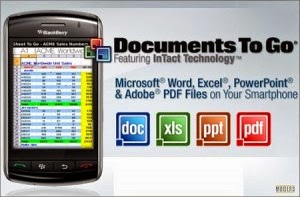
Platform : Android
Developer : Dataviz
Play store : Download
Full Version: Download
Subscribe to:
Posts (Atom)