Showing posts with label web. Show all posts
Showing posts with label web. Show all posts
Friday, February 13, 2015
iPad Web Preview Mockup PSD

Free Download iPad Web Preview PSD Mockup. It comes in both black and white, and you can add or remove the smart cover to either one. Enjoy!
Type : PSD
Category : Mockups
License : Free
Author : Bestpsdfreebies
Download

Wednesday, February 4, 2015
Android soap web service access using ksoap2 Handlers
Here I use Android Handlers to perform the background task.
To access SOAP based web service from Android we can easily use ksoap2 library. It is a lightweight and efficient SOAP client library specially designed for the Android platform. (http://code.google.com/p/ksoap2-android/). in this post Im going to show how we can access a SOAP web service from Android.
This post consists two parts. In the first part Im accessing free live .NET web service Currency Converter provided by http://www.webservicex.net/. In the second part Im going to create a soap call for a java web service hosted in my own PC.
1. Access .NET web service.
Quick demo :

Code for the main activity :
Add ksoap2 to the java build path of your Android project (You can download latest version of ksoap2 from here : http://code.google.com/p/ksoap2-android/wiki/HowToUse?tm=2 click the url under "with a direct download url of ")
Add internet permission to AndroidManifest
Code for the activity_main.xml
2. Access java web service
We have to create two project for this. One is for the web service and the other one is the Android project. For these two projects keep separate two Eclipse installations.
2.1. Web service project.
Here I have accessed a locally hosted java web service on my PC. If you want to know how to create a java soap web service refer following two posts. (do not need to create the java client described in the 3rd post)
1. http://codeoncloud.blogspot.com/2012/12/create-java-web-service-in-eclipse.html
2. http://codeoncloud.blogspot.com/2012/12/create-java-web-service-in-eclipse_8.html
Here only thing that you need to change is "sayHello" method in the second post.
2.2.Android project
Quick demo :
 Code for the main activity :
Add ksoap2 to the java build path of your Android project (You can download latest version of ksoap2 from here : http://code.google.com/p/ksoap2-android/wiki/HowToUse?tm=2 click the url under "with a direct download url of ")
Change following variables according to your WSDL.
First open the WDL using a web browser (How to open the WSDL)
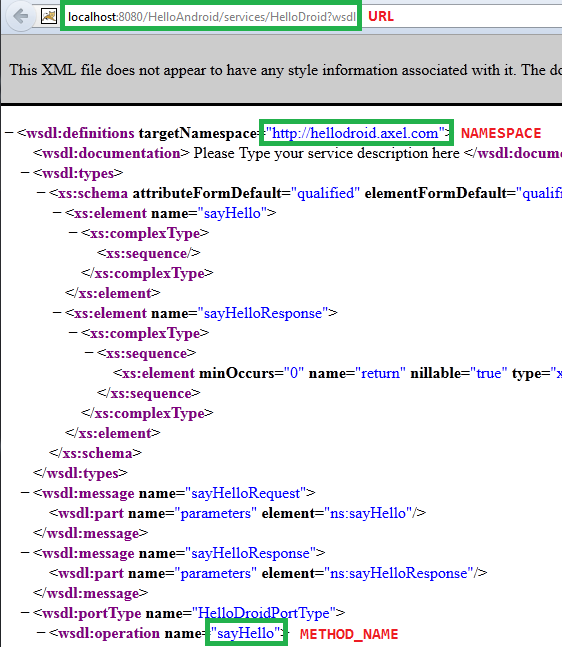
NAMESPACE "targetNamespace"
URL is the URL of WSDL . (replace localhost with ip 10.0.2.2)
SOAP_ACTION "NAMESPACE/METHOD_NAME"
METHOD_NAME "WSDL operation"
Add internet permission for the Manifest file. Code of the Manifest.xml after adding permissions should like follows.
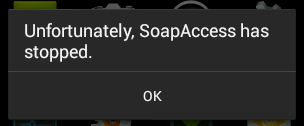
If you are getting "Unfortunately stopped" error this post may helpful.
Was above information helpful?
Your comments always encourage me to write more...
Read more »
To access SOAP based web service from Android we can easily use ksoap2 library. It is a lightweight and efficient SOAP client library specially designed for the Android platform. (http://code.google.com/p/ksoap2-android/). in this post Im going to show how we can access a SOAP web service from Android.
This post consists two parts. In the first part Im accessing free live .NET web service Currency Converter provided by http://www.webservicex.net/. In the second part Im going to create a soap call for a java web service hosted in my own PC.
1. Access .NET web service.
Quick demo :
Code for the main activity :
Add ksoap2 to the java build path of your Android project (You can download latest version of ksoap2 from here : http://code.google.com/p/ksoap2-android/wiki/HowToUse?tm=2 click the url under "with a direct download url of ")
package com.axel.androidsoap;

import org.ksoap2.SoapEnvelope;
import org.ksoap2.serialization.PropertyInfo;
import org.ksoap2.serialization.SoapObject;
import org.ksoap2.serialization.SoapPrimitive;
import org.ksoap2.serialization.SoapSerializationEnvelope;
import org.ksoap2.transport.HttpTransportSE;

import android.os.Bundle;
import android.os.Handler;
import android.app.Activity;
import android.view.Menu;
import android.widget.TextView;

public class MainActivity extends Activity {

   private final String NAMESPACE = "http://www.webserviceX.NET/";
   private final String URL = "http://www.webservicex.net/CurrencyConvertor.asmx";
   private final String SOAP_ACTION = "http://www.webserviceX.NET/ConversionRate";
   private final String METHOD_NAME = "ConversionRate";

   private String webResponse = "";
   private TextView textView;
   private Thread thread;
   private Handler handler = new Handler();

   private String fromCurrency = "USD";
   private String toCurrency = "LKR";

    /** Called when the activity is first created. */

 @Override
 protected void onCreate(Bundle savedInstanceState) {
  super.onCreate(savedInstanceState);
  setContentView(R.layout.activity_main);
  textView = (TextView) findViewById(R.id.textView1);
  startWebAccess();
 }


 public void startWebAccess(){
  thread = new Thread(){
   public void run(){
    try{
      SoapObject request = new SoapObject(NAMESPACE, METHOD_NAME);
         PropertyInfo fromProp =new PropertyInfo();
         fromProp.setName("FromCurrency");
         fromProp.setValue(fromCurrency);
         fromProp.setType(String.class);
         request.addProperty(fromProp);

         PropertyInfo toProp =new PropertyInfo();
         toProp.setName("ToCurrency");
         toProp.setValue(toCurrency);
         toProp.setType(String.class);
         request.addProperty(toProp);

         SoapSerializationEnvelope envelope = new SoapSerializationEnvelope(SoapEnvelope.VER11);
         envelope.dotNet = true;
         envelope.setOutputSoapObject(request);
         HttpTransportSE androidHttpTransport = new HttpTransportSE(URL);

         androidHttpTransport.call(SOAP_ACTION, envelope);
         SoapPrimitive response = (SoapPrimitive)envelope.getResponse();
         webResponse = response.toString();
    }

    catch(Exception e){
     e.printStackTrace();
    }

    handler.post(createUI);
   }
  };

  thread.start();
 }


 final Runnable createUI = new Runnable() {

  public void run(){

  textView.setText("1 "+fromCurrency+" = "+webResponse+" "+toCurrency);
  }
  };


 @Override
 public boolean onCreateOptionsMenu(Menu menu) {
  // Inflate the menu; this adds items to the action bar if it is present.
  getMenuInflater().inflate(R.menu.main, menu);
  return true;
 }

}
Add internet permission to AndroidManifest
<?xml version="1.0" encoding="utf-8"?>
<manifest xmlns:android="http://schemas.android.com/apk/res/android"
    package="com.axel.androidsoap"
    android:versionCode="1"
    android:versionName="1.0" >
    <uses-sdk
        android:minSdkVersion="8"
        android:targetSdkVersion="17" />
    <uses-permission android:name="android.permission.INTERNET"/>
    <application
        android:allowBackup="true"
        android:icon="@drawable/ic_launcher"
        android:label="@string/app_name"
        android:theme="@style/AppTheme" >
        <activity
            android:name="com.axel.androidsoap.MainActivity"
            android:label="@string/app_name" >
            <intent-filter>
                <action android:name="android.intent.action.MAIN" />
                <category android:name="android.intent.category.LAUNCHER" />
            </intent-filter>
        </activity>
    </application>
</manifest>
Code for the activity_main.xml
<RelativeLayout xmlns:android="http://schemas.android.com/apk/res/android"
    xmlns:tools="http://schemas.android.com/tools"
    android:layout_width="match_parent"
    android:layout_height="match_parent"
    android:paddingBottom="@dimen/activity_vertical_margin"
    android:paddingLeft="@dimen/activity_horizontal_margin"
    android:paddingRight="@dimen/activity_horizontal_margin"
    android:paddingTop="@dimen/activity_vertical_margin"
    tools:context=".MainActivity" >

    <TextView
        android:id="@+id/textView1"
        android:layout_width="wrap_content"
        android:layout_height="wrap_content"
        android:layout_alignParentLeft="true"
        android:layout_alignParentTop="true"
        android:layout_marginLeft="32dp"
        android:layout_marginTop="60dp"
        android:text=""
        android:textAppearance="?android:attr/textAppearanceMedium" />

</RelativeLayout>
2. Access java web service
We have to create two project for this. One is for the web service and the other one is the Android project. For these two projects keep separate two Eclipse installations.
2.1. Web service project.
Here I have accessed a locally hosted java web service on my PC. If you want to know how to create a java soap web service refer following two posts. (do not need to create the java client described in the 3rd post)
1. http://codeoncloud.blogspot.com/2012/12/create-java-web-service-in-eclipse.html
2. http://codeoncloud.blogspot.com/2012/12/create-java-web-service-in-eclipse_8.html
Here only thing that you need to change is "sayHello" method in the second post.
 public String sayHello(String name) {
    return "Hello !!! " + name;
 }
Replace it with following code public String sayHello(){
return "Hello Jelly Bean";
}
2.2.Android project
Quick demo :
Add ksoap2 to the java build path of your Android project (You can download latest version of ksoap2 from here : http://code.google.com/p/ksoap2-android/wiki/HowToUse?tm=2 click the url under "with a direct download url of ")
package com.axis.soapaccess;

import org.ksoap2.SoapEnvelope;
import org.ksoap2.serialization.SoapObject;
import org.ksoap2.serialization.SoapPrimitive;
import org.ksoap2.serialization.SoapSerializationEnvelope;
import org.ksoap2.transport.HttpTransportSE;

import android.os.Bundle;
import android.os.Handler;
import android.app.Activity;
import android.view.Menu;
import android.widget.TextView;

public class MainActivity extends Activity {

 //change following variables according to the WSDL
 private final String NAMESPACE = "http://hellodroid.axel.com";
 private final String URL = "http://10.0.2.2:8080/HelloAndroid/services/HelloDroid?wsdl";
 private final String SOAP_ACTION = "http://hellodroid.axel.com/sayHello";
 private final String METHOD_NAME = "sayHello";

 private String Webresponse = "";
 private TextView textView;
 private Thread thread;
 private Handler handler = new Handler();

 @Override
 protected void onCreate(Bundle savedInstanceState) {
  super.onCreate(savedInstanceState);
  setContentView(R.layout.activity_main);
  textView = (TextView) findViewById(R.id.textView1);
  webAccess();
 }


 public void webAccess(){
  thread = new Thread(){
   public void run(){
    try{
      SoapObject request = new SoapObject(NAMESPACE, METHOD_NAME);
         SoapSerializationEnvelope envelope = new SoapSerializationEnvelope(SoapEnvelope.VER11);
         //envelope.dotNet = true;
         envelope.setOutputSoapObject(request);
         HttpTransportSE androidHttpTransport = new HttpTransportSE(URL);
         androidHttpTransport.call(SOAP_ACTION, envelope);
            SoapPrimitive response = (SoapPrimitive)envelope.getResponse();
            Webresponse = response.toString();
    }

    catch(Exception e){
     e.printStackTrace();
    }

    handler.post(createUI);
   }
  };

  thread.start();
 }


 final Runnable createUI = new Runnable() {
  public void run(){
  textView.setText(Webresponse);
 }
 };

 @Override
 public boolean onCreateOptionsMenu(Menu menu) {
  // Inflate the menu; this adds items to the action bar if it is present.
  getMenuInflater().inflate(R.menu.main, menu);
  return true;
 }

}
Change following variables according to your WSDL.
private final String NAMESPACE = "http://hellodroid.axel.com";
private final String URL = "http://10.0.2.2:8080/HelloAndroid/services/HelloDroid?wsdl";
private final String SOAP_ACTION = "http://hellodroid.axel.com/sayHello";
private final String METHOD_NAME = "sayHello";
First open the WDL using a web browser (How to open the WSDL)
NAMESPACE "targetNamespace"
URL is the URL of WSDL . (replace localhost with ip 10.0.2.2)
SOAP_ACTION "NAMESPACE/METHOD_NAME"
METHOD_NAME "WSDL operation"
Add internet permission for the Manifest file. Code of the Manifest.xml after adding permissions should like follows.
<?xml version="1.0" encoding="utf-8"?>Code for the layout
<manifest xmlns:android="http://schemas.android.com/apk/res/android"
package="com.axis.soapaccess"
android:versionCode="1"
android:versionName="1.0" >
<uses-sdk
android:minSdkVersion="17"
android:targetSdkVersion="17" />
<uses-permission android:name="android.permission.INTERNET"/>
<application
android:allowBackup="true"
android:icon="@drawable/ic_launcher"
android:label="@string/app_name"
android:theme="@style/AppTheme" >
<activity
android:name="com.axis.soapaccess.MainActivity"
android:label="@string/app_name" >
<intent-filter>
<action android:name="android.intent.action.MAIN" />
<category android:name="android.intent.category.LAUNCHER" />
</intent-filter>
</activity>
</application>
</manifest>
<RelativeLayout xmlns:android="http://schemas.android.com/apk/res/android"Thats it.
xmlns:tools="http://schemas.android.com/tools"
android:layout_width="match_parent"
android:layout_height="match_parent"
android:paddingBottom="@dimen/activity_vertical_margin"
android:paddingLeft="@dimen/activity_horizontal_margin"
android:paddingRight="@dimen/activity_horizontal_margin"
android:paddingTop="@dimen/activity_vertical_margin"
tools:context=".MainActivity" >
<TextView
android:id="@+id/textView1"
android:layout_width="wrap_content"
android:layout_height="wrap_content"
android:layout_alignParentTop="true"
android:layout_centerHorizontal="true"
android:layout_marginTop="113dp"
android:text="Medium Text"
android:textAppearance="?android:attr/textAppearanceMedium" />
</RelativeLayout>
If you are getting "Unfortunately stopped" error this post may helpful.
Was above information helpful?
Your comments always encourage me to write more...
Sunday, January 25, 2015
Android web service access using Async Task
In Android we can use Async Tasks to perform background activities without interrupting main gui thread. So it is ideal for the tasks like web service accessing in Android. In this post Im going to demonstrate a very simple application which uses Async Task to access soap based web service. Here I access .NET web service Currency Converter provided by http://www.webservicex.net/.
To create this application you need to have ksoap2 libaray. (You can download latest version of ksoap2 from here : http://code.google.com/p/ksoap2-android/wiki/HowToUse?tm=2 click the url under "with a direct download url of ").
To import ksoap2 to the java build path follow steps mentioned here.
Here is the quick demo of the application.

Code for the main activity:
In line 68 I have set "envelope.dotNet = true;" because Im accessing .NET web service. You can comment that line if you are accessing other web service.
You have to add INTERNET permission to AndroidManifest.xml
Download Android (4.2.2) project here.
To find more details about Async Task follow the links below
http://developer.android.com/reference/android/os/AsyncTask.html
http://www.vogella.com/articles/AndroidBackgroundProcessing/article.html
If you are getting "Unfortunately stopped" error this post may helpful.
If you want to use handlers to access web services refer below tutorial.
http://codeoncloud.blogspot.com/2013/06/android-java-soap-web-service-access.html
Was above information helpful?
Your comments always encourage me to write more...
Read more »
To create this application you need to have ksoap2 libaray. (You can download latest version of ksoap2 from here : http://code.google.com/p/ksoap2-android/wiki/HowToUse?tm=2 click the url under "with a direct download url of ").
To import ksoap2 to the java build path follow steps mentioned here.
Here is the quick demo of the application.
Code for the main activity:
In line 68 I have set "envelope.dotNet = true;" because Im accessing .NET web service. You can comment that line if you are accessing other web service.
package com.soap.client;Code for the layout
import org.ksoap2.SoapEnvelope;
import org.ksoap2.serialization.PropertyInfo;
import org.ksoap2.serialization.SoapObject;
import org.ksoap2.serialization.SoapPrimitive;
import org.ksoap2.serialization.SoapSerializationEnvelope;
import org.ksoap2.transport.HttpTransportSE;
import android.os.AsyncTask;
import android.os.Bundle;
import android.app.Activity;
import android.view.Menu;
import android.view.View;
import android.widget.TextView;
import android.widget.Toast;
public class MainActivity extends Activity {
private TextView textView;
@Override
protected void onCreate(Bundle savedInstanceState) {
super.onCreate(savedInstanceState);
setContentView(R.layout.activity_main);
textView = (TextView) findViewById(R.id.textView1);
this.accessWebService(textView);
}
@Override
public boolean onCreateOptionsMenu(Menu menu) {
// Inflate the menu; this adds items to the action bar if it is present.
getMenuInflater().inflate(R.menu.main, menu);
return true;
}
//starting asynchronus task
private class SoapAccessTask extends AsyncTask<String, Void, String> {
@Override
protected void onPreExecute() {
//if you want, start progress dialog here
}
@Override
protected String doInBackground(String... urls) {
String webResponse = "";
try{
final String NAMESPACE = "http://www.webserviceX.NET/";
final String URL = "http://www.webservicex.net/CurrencyConvertor.asmx";
final String SOAP_ACTION = "http://www.webserviceX.NET/ConversionRate";
final String METHOD_NAME = "ConversionRate";
SoapObject request = new SoapObject(NAMESPACE, METHOD_NAME);
PropertyInfo fromProp =new PropertyInfo();
fromProp.setName("FromCurrency");
//gets the first element from urls array
fromProp.setValue(urls[0]);
fromProp.setType(String.class);
request.addProperty(fromProp);
PropertyInfo toProp =new PropertyInfo();
toProp.setName("ToCurrency");
//second element of the urls array
toProp.setValue(urls[1]);
toProp.setType(String.class);
request.addProperty(toProp);
SoapSerializationEnvelope envelope = new SoapSerializationEnvelope(SoapEnvelope.VER11);
envelope.dotNet = true;
envelope.setOutputSoapObject(request);
HttpTransportSE androidHttpTransport = new HttpTransportSE(URL);
androidHttpTransport.call(SOAP_ACTION, envelope);
SoapPrimitive response = (SoapPrimitive)envelope.getResponse();
webResponse = response.toString();
}
catch(Exception e){
Toast.makeText(getApplicationContext(),"Cannot access the web service"+e.toString(), Toast.LENGTH_LONG).show();
}
return webResponse;
}
@Override
protected void onPostExecute(String result) {
//if you started progress dialog dismiss it here
textView.setText(result);
Toast.makeText(getApplicationContext(),"Completed...", Toast.LENGTH_LONG).show();
}
}
public void accessWebService(View view) {
SoapAccessTask task = new SoapAccessTask();
//passes values for the urls string array
task.execute(new String[] { "USD","LKR"});
}
}
<RelativeLayout xmlns:android="http://schemas.android.com/apk/res/android"
    xmlns:tools="http://schemas.android.com/tools"
    android:layout_width="match_parent"
    android:layout_height="match_parent"
    android:paddingBottom="@dimen/activity_vertical_margin"
    android:paddingLeft="@dimen/activity_horizontal_margin"
    android:paddingRight="@dimen/activity_horizontal_margin"
    android:paddingTop="@dimen/activity_vertical_margin"
    tools:context=".MainActivity" >

    <TextView
        android:id="@+id/textView1"
        android:layout_width="wrap_content"
        android:layout_height="wrap_content"
        android:layout_alignParentTop="true"
        android:layout_centerHorizontal="true"
        android:layout_marginTop="89dp"
        android:text=""
        android:textAppearance="?android:attr/textAppearanceMedium" />

</RelativeLayout>
You have to add INTERNET permission to AndroidManifest.xml
<?xml version="1.0" encoding="utf-8"?>
<manifest xmlns:android="http://schemas.android.com/apk/res/android"
    package="com.soap.client"
    android:versionCode="1"
    android:versionName="1.0" >
    <uses-sdk
        android:minSdkVersion="17"
        android:targetSdkVersion="17" />
    <uses-permission android:name="android.permission.INTERNET"/>
    <application
        android:allowBackup="true"
        android:icon="@drawable/ic_launcher"
        android:label="@string/app_name"
        android:theme="@style/AppTheme" >
        <activity
            android:name="com.soap.client.MainActivity"
            android:label="@string/app_name" >
            <intent-filter>
                <action android:name="android.intent.action.MAIN" />
                <category android:name="android.intent.category.LAUNCHER" />
            </intent-filter>
        </activity>
    </application>
</manifest>
Download Android (4.2.2) project here.
To find more details about Async Task follow the links below
http://developer.android.com/reference/android/os/AsyncTask.html
http://www.vogella.com/articles/AndroidBackgroundProcessing/article.html
If you are getting "Unfortunately stopped" error this post may helpful.
If you want to use handlers to access web services refer below tutorial.
http://codeoncloud.blogspot.com/2013/06/android-java-soap-web-service-access.html
Was above information helpful?
Your comments always encourage me to write more...
Subscribe to:
Posts (Atom)